
Mobile access is often the most convenient way to browse starsuperette.com/, but convenience should not be confused with a dedicated app or unrestricted access. Dragonia’s information describes a responsive website that works through a mobile browser, with a shortcut option rather than a confirmed native Android or iOS application. For New Zealand adults considering legal online casinos, the practical decision is therefore less about downloading software and more about checking browser compatibility, account security, location-based availability and how comfortably the site can be used on a smaller screen.
What does mobile browser access actually provide?
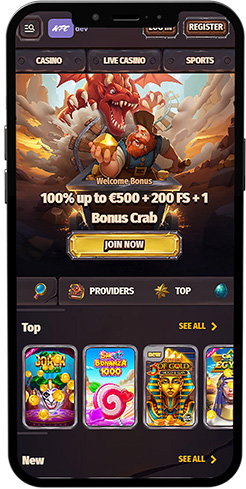
A responsive website adjusts its layout to fit a phone or tablet screen. This can make menus, game categories, account pages and support tools easier to use without opening a desktop computer. The supplied information indicates that the mobile version provides access to casino games and account functions through a browser, so users can reach the same general online environment without installing a separate application.
That distinction matters. A browser-based service is not automatically the same as a native app downloaded from an official app store. The available information does not confirm a dedicated Android or iOS application. It does mention a “Create Shortcut” option, which places a convenient icon on a device’s home screen. This can make the website feel more app-like, but it remains a browser shortcut and does not prove that a standalone application has been installed.
Mobile browsing can suit people who prefer occasional access, use more than one device or do not want another application taking up storage. It may be less suitable for anyone expecting offline access, device-specific notifications or the deeper integration sometimes offered by a native app. Before relying on mobile access, check that the phone’s operating system and browser are current, and remember that game, account and payment availability can vary according to location and device.
Check the phone and browser before relying on mobile play
The recommended starting point is the browser rather than the game catalogue. The supplied guidance recommends the latest version of Google Chrome, although a user may choose another supported browser. Updating the operating system and browser helps reduce compatibility problems and ensures that security fixes are available. A stable internet connection is also important, particularly where a page contains live video, animation or changing account information.
Screen size can affect how comfortably a person reviews important details. On a phone, promotional conditions, game rules, account notices and verification requests may require scrolling or expanding sections. Do not assume that a compact display means terms are less important. If text is difficult to read, rotate the device, increase the browser zoom or move to a larger screen before making a decision about an offer or account action.
Performance can also vary between older and newer devices. Limited storage, a crowded browser cache, low battery or several open tabs may cause pages to load slowly. If a login or account page behaves unexpectedly, the available technical guidance suggests checking the credentials and clearing browser cache and cookies. Repeating an action several times during a connection problem can create confusion, so confirm whether the first request was completed before trying again.
Keep a mobile session private and secure
A phone is convenient but can be easier to lose, share or leave unlocked than a home computer. Use a screen lock and avoid saving account credentials on a shared device. The account holder remains responsible for keeping the username and password confidential, so a shortcut on the home screen should not be treated as a security feature. Anyone with access to an unlocked phone may be able to open the browser session.
Public Wi-Fi deserves particular caution. When browsing an account, use a trusted connection where possible and avoid entering sensitive details on unfamiliar networks. Check that the browser address is correct before signing in, and be wary of messages requesting passwords, payment information or identity documents. For wider guidance on protecting accounts and devices, Netsafe’s online safety information offers New Zealand-focused advice that can be applied beyond gambling websites.
Mobile notifications and browser permissions should also be reviewed. A site does not need unnecessary access to contacts, photographs or a microphone simply because it can be opened on a phone. If identity or payment documents are requested, read the on-screen instructions carefully and submit information only through the stated account process. Keep copies of what was requested and note when it was supplied, especially if verification later affects access to account functions.
Separate convenience from availability

A mobile site may make it easy to browse, but it does not guarantee that every title or account function will be available in every location. The supplied information says that games and payment methods can depend on the player’s country, software-provider restrictions and the device being used. Individual providers may apply additional country conditions, so a game visible in a mobile lobby is not necessarily available for every user.
The same principle applies to account-related tasks. The mobile browser may display account pages, support tools and other functions, but the public information does not establish that every process will be equally convenient on a small screen. A document upload, terms review or detailed account check may be easier on a tablet or computer. If a page does not display correctly, use the latest supported browser and contact customer support rather than assuming the action has failed or succeeded.
Location should be considered separately from device compatibility. A phone’s ability to open a website does not itself confirm that a particular activity, game or payment method is available to the user. The operator’s terms place responsibility on individuals to check the gambling laws applying where they live. Before using mobile access, review the current operator terms, the account’s displayed options and any relevant provider restrictions instead of relying on what another person sees on a different device.
Choose a mobile routine that limits avoidable mistakes
The best mobile setup is one that supports deliberate decisions rather than hurried ones. Use a private device, take time to read important conditions and avoid making account choices while distracted or using a poor connection. A shortcut can save time when opening the website, but it should not encourage automatic visits or make the service feel like an ordinary social media application.
It is useful to create a simple pre-session check:
- Confirm that the phone is locked and the browser is updated.
- Use a trusted connection and check the website address carefully.
- Read the relevant game, promotion or account terms before acting.
- Check that any displayed option is actually available to the account and location.
- Close the session when finished, particularly on a shared or borrowed device.
This routine also helps distinguish technical trouble from account restrictions. A missing game, unavailable payment option or blocked function may result from country, provider, verification or account conditions rather than a browser fault. If support is needed, describe the device, browser and problem without sending passwords. Mobile access is most useful when it remains a controlled way to view information and manage an account, not when convenience replaces careful checking.
Mobile browsing questions answered
Is the mobile version a downloadable app?
Not according to the available information. The service is described as a responsive website accessed through a mobile browser. A “Create Shortcut” option may add an icon to the device’s home screen, but that is a browser shortcut, not confirmation of a native Android or iOS application.
Will every game work on my phone?
Not necessarily. Availability may depend on the device, browser, country and individual software-provider restrictions. A title shown in the lobby may not be available to every account. If a game loads poorly or is missing, check the browser and current account information rather than assuming mobile access includes the complete catalogue.
What should I do if mobile access fails?
Check the entered credentials, update the browser and clear its cache and cookies if appropriate. Try a reliable connection or a larger device to identify whether the problem is screen-related. If the issue continues, contact customer support without sharing your password, and ask whether account, location or verification conditions are affecting access.
